
Programming guide
How to teach a robotic welder
Program welds in minutes, from a phone or tablet, with the Smart Puck in hand. This is the actual workflow, step by step.
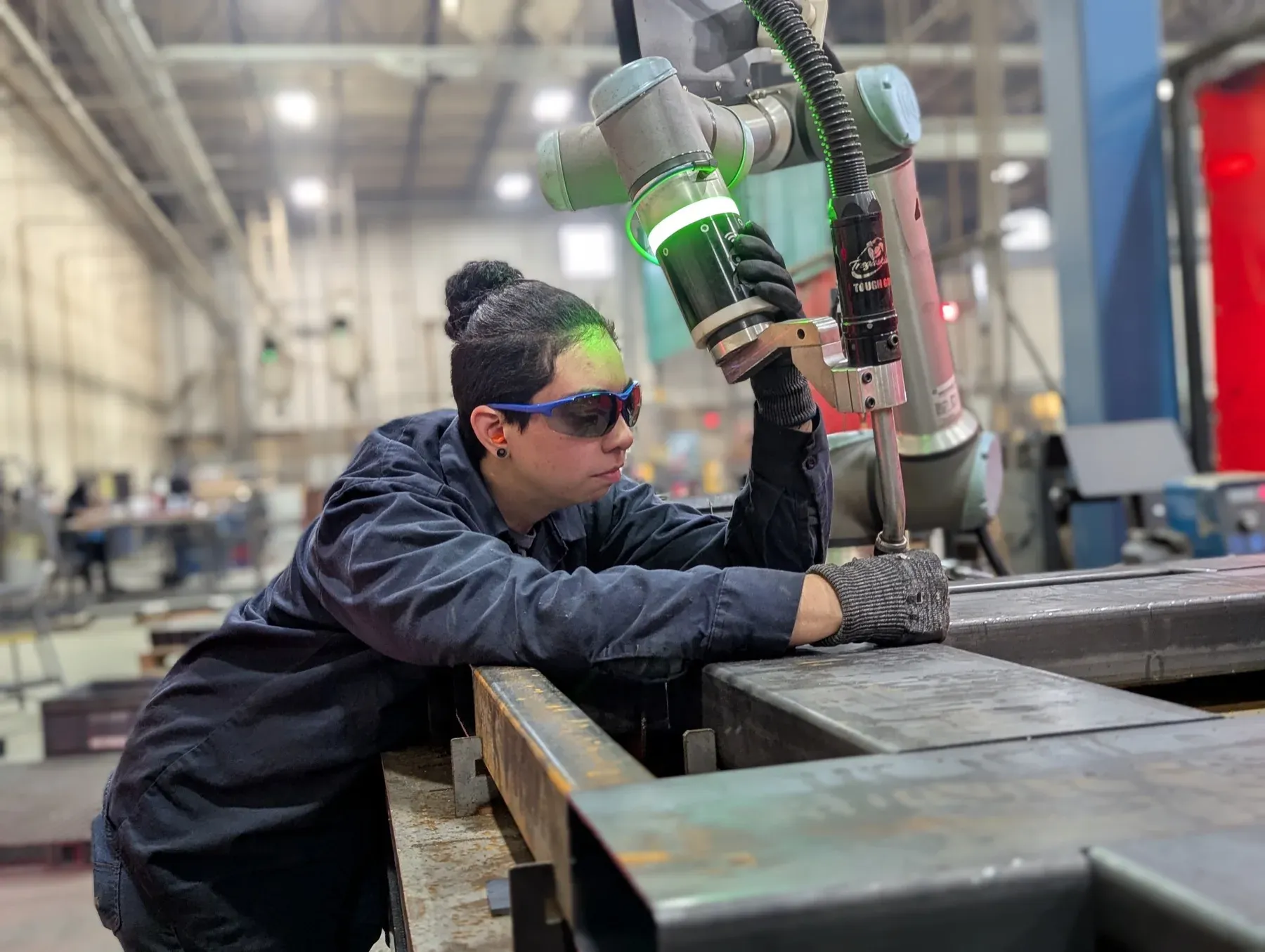 SMART PUCK — TAP TO TEACH
Watch it first
A linear weld, taught in 90 seconds
The workflow
From new part to running production
- 01
Create a part
- Open the Beacon app, go to the Parts tab, and tap plus to create a new part.
- Name your part and choose weld settings: pick from predefined options or set your own.
- Set weld parameters at the part level, or override them for each individual weld.
- 02
Teach your welds
- Linear weld: press and hold the Smart Puck's green button to move the robot, tap blue to save the start point, then the end point. Beacon handles approach and exit paths automatically.
- Radial weld: save the start of the arc, the midpoint, and the end, or convert it to a full circle inside the app.
- Tack welds: move the robot and tap blue to save each tack point, as many as you need.
- Stitch weld: save the start and end of the weld length, then set the number of stitches and stitch length in the app.
- Combine linear, radial, tack, and stitch welds freely in a single program.
- 03
Add air moves and playlists
- Air Moves lift the robot clear of clamps and obstacles between welds. Teach them with the puck and Beacon runs them before each weld.
- Playlists build your workflow: run a single part, or sequence a hundred with Auto-Play running them back-to-back.
- 04
Run from the Operator Box
- Operators control production without touching the app: E-Stop, Play/Pause, Stop, Operator Input, and an Arc On/Off key.
- Press Play to start the next weld. That's the whole loop.
- 05
Edit, shift, and pattern
- Adjust after testing: select a weld point, tap Move Here, fine-tune with the Operator Box, and Touch Up to update the position.
- Shift a part to a different spot on the table: select the points, teach the new origin, and Beacon moves the whole program.
- Pattern a part across multiple fixtures: teach the original once, then Pattern Points to repeat it.
- 06
Watch the data
- Beacon tracks weld data in real time: cycle time, parts per hour, gas and wire usage.
- Build custom dashboards for the numbers your shop cares about.
- Stuck? Swipe left, tap Support, and chat with a welding engineer, 24/7, in the app.
Start
Teach your first part yourself
Bring your parts and your people to Nashville. You'll run this exact workflow on a real system.